


Long-running jobs often finish after you have moved to another window. A line in a terminal or log is easy to miss, while a modal dialog interrupts whatever you are doing. pager gives command-line programs a middle ground: a small native macOS panel that stays above other windows, shows useful context, and can return a decision to the process that opened it.

Watch the tour, or run pager --tour after installing:
tour.2.mp4
There is also a narrated walkthrough on YouTube (67 seconds):
Any program that can run a shell command can use it. That includes cron jobs, git hooks, deploy scripts, local CI, shell traps, and coding agents. There is no service or SDK to integrate. The program is plain Swift with no third-party dependencies: the panel is one file, src/Pager.swift, and the optional ambient stream lives beside it.
Clone the repository and run the installer:
git clone https://github.com/SignedAdam/pager.git
cd pager
./install.sh
The installer compiles the Swift files in src/ and links the result to ~/.local/bin/pager. If swiftc is unavailable, it uses the prebuilt universal binary in dist/ instead. The prebuilt binary supports both Apple silicon and Intel Macs.
Make sure ~/.local/bin is on your PATH:
export PATH="$HOME/.local/bin:$PATH"An interactive install starts the walkthrough. Pass --no-tour to skip it, or run it whenever you want:
pager --tourThe tour has ten steps and covers the controls, content types, actions, and placement. There is no Homebrew package yet.
To remove the command symlink while keeping your history and settings:
./install.sh --uninstallpager --title "Build finished" \
--source "tests" \
--body "All **412 checks** passed in `3m11s`." \
--sound riseThe command stays in the foreground until the panel is dismissed or its timer expires. Add & when a script should display the panel and continue immediately:
pager --title "Backup complete" --chip "18.4 GB" --seconds 30 &Panels disappear after 180 seconds by default. Use --seconds to change that, or --pinned when the message must remain until someone handles it.
For more commands to adapt:
pager --examplesAdd a button with --action "Label:command". The option is repeatable. Clicking a button runs its command through /bin/sh, prints the button label to stdout, and closes the panel.
pager --title "Deploy failed on production" \
  --app "coolify" \
  --source "deploy" \
  --accent "#ff5f57" \
  --body "3 of 12 containers are unhealthy. Traffic is still on the previous revision." \
  --chip "production" \
  --action "Logs:open https://coolify.example.com/logs" \
  --action "Rollback:./rollback.sh production" \
  --pinned
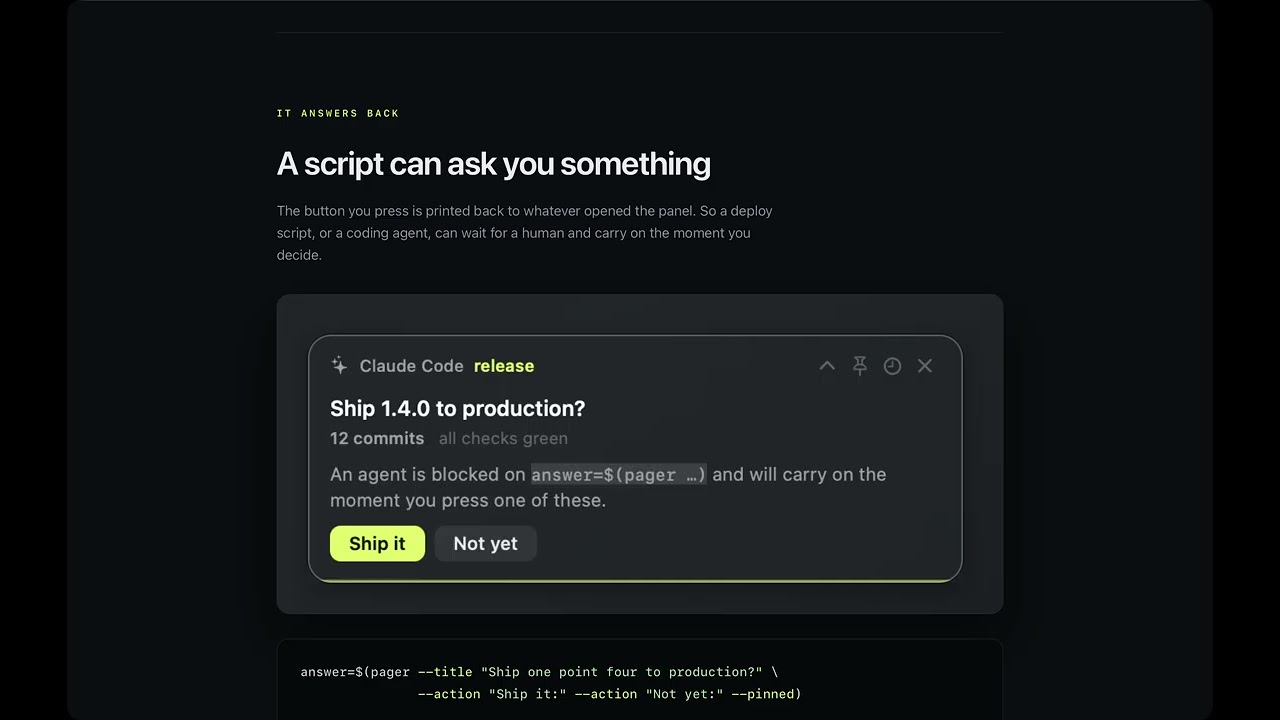
The command part may be empty. That turns pager into a question a shell script or agent can wait on:
answer="$(pager \
  --title "Ship 1.4.0 to production?" \
  --app "Claude Code" \
  --source "release" \
  --body "12 commits. All checks are green." \
  --action "Ship it:" \
  --action "Not yet:" \
  --pinned)"

case "$answer" in
  "Ship it") ./deploy.sh ;;
  "Not yet"|"") exit 0 ;;
esac
The caller waits while the panel is open. It receives Ship it, Not yet, or an empty string if the panel is dismissed without a choice.

Buttons can have an SF Symbol or image, their own fill color, and their own text color. Put --action-icon, --action-fill, or --action-text immediately after the action they should decorate.

Titles, body text, and header text accept a small Markdown-style subset:
**bold***italic*`inline code`
Escape formatting markers with a backslash:
pager --title "Files matching \*.log"Use repeated --chip options for short captions. Pass a comma-separated list of numbers to --sparkline to display an inline chart:
pager --title "Sales are up 34% this week" \
  --app "acme" \
  --source "weekly" \
  --accent "#28c840" \
  --body "Best week since launch. Tuesday's dip was the outage." \
  --chip "mrr $1,840" \
  --chip "12 new, 2 churned" \
  --sparkline "4,6,5,9,8,12,17,16,22" \
  --action "Dashboard:open https://example.com/admin"
--image displays a still image or animated GIF. --video embeds an autoplaying video with its own playback controls. Add --loop to repeat a video.
pager --title "New render is ready" \
  --source "render" \
  --video "$HOME/renders/demo.mp4" \
  --action "Open folder:open $HOME/renders"
Each audio file displays a play button, duration, and waveform. Click the player to jump to that position in the track. Only one file plays at a time, and the panel timeout pauses during playback.
pager --title "Three takes, pick one" \
  --app "studio" \
  --source "voice" \
  --width 540 \
  --audio "chirp:$HOME/takes/chirp.wav" \
  --audio "rise:$HOME/takes/rise.wav" \
  --audio "fall:$HOME/takes/fall.wav" \
  --choose "Keep:printf '%s\n' '{}' >> $HOME/takes/kept.txt" \
  --pinned
--choose adds an action button to every audio row. In the command string, {} is replaced by the item name and {path} by its file path. Clicking the button runs the command and keeps the panel open.

Panel controls (top right):
- Collapse: Minimizes the panel to a single line.
- Pin: Keeps the panel open by disabling the timeout.
- Remind: Hides the panel and reschedules it for 10m, 30m, 1h, 3h, or 9:00 AM tomorrow.
- Dismiss: Closes the panel.
You can also:
- drag the panel anywhere on screen;
- middle-click it to dismiss it;
- right-click it for actions, pinning, compact mode, reminders, copy entries, and dismissal.
The window is a non-activating NSPanel at status-bar level, and the process uses macOS's accessory activation policy. It does not enter the Dock, appear in the app switcher, or take keyboard focus from the application where you are typing. It can remain visible across Spaces and beside full-screen applications.
Panels can start in any corner. Each corner keeps its own stack, so unrelated groups do not affect one another.
vertical is the default stacking mode. cascade fans panels out so their identities remain visible. none places a panel without reserving space in a stack.
| Vertical | Cascade |
|---|---|
 |
 |
When a panel in a vertical stack closes, the panels beyond it slide into the free space.

When you drag a panel, it detaches from its stack. Future panels without --corner open at this new position. Panels with an explicit --corner still use that corner's default position.
Run pager in the background (with &) to display a panel without blocking. Run it in the foreground to wait for user interaction; it prints the clicked button to standard output when closed.
#!/bin/bash
set -Eeuo pipefail

trap 'pager --title "backup.sh failed at line $LINENO" \
  --source "backup" --accent "#ff5f57" --sound fall --pinned' ERR

run_backup#!/bin/sh
if ! make test; then
pager --title "Pre-push checks failed" \
--source "git" \
--action "Open log:open /tmp/pre-push.log" \
--pinned &
exit 1
fiUse an absolute path when the job has a minimal PATH:
0 3 * * * /Users/you/.local/bin/pager --title "Nightly backup finished" --source cron --sound woodRequires an active graphical user session to display panels. It will not work on headless machines or over SSH sessions that do not have access to a logged-in macOS desktop.
A coding agent that can run shell commands can use the same blocking pattern as a script. Give it a command such as:
pager --title "The release is ready. Continue?" \
  --app "coding agent" \
  --source "approval" \
  --action "Continue:" \
  --action "Stop:" \
  --pinned
Tell the agent to wait for stdout and continue only when it reads Continue. The panel does not need to know which agent opened it.
--title is required for a panel. Options that say repeatable may be supplied more than once.
| Option | Meaning |
|---|---|
--title <text> |
Main text. Required. Supports bold, italic, and inline code markup. |
--body <text> |
Wrapped paragraph below the title. Supports the same markup. |
--app <name> |
Application or tool name in the header. |
--source <name> |
Source or channel in the header, colored with the accent. |
--subtitle <text> |
Muted header text beside the source. |
--icon <symbol|path> |
SF Symbol name or an image path for the header. |
--chip <text> |
Short caption below the title. Repeatable. |
--meta <text> |
Alias for --chip. Repeatable. |
--sparkline <numbers> |
Line chart from numbers separated by commas, semicolons, or spaces. |
--accent "#rrggbb" |
Accent color used for the source, chart, progress line, and selection state. Default: #c8ff00. |
--width <points> |
Requested panel width. It is scaled for the display and capped to the visible screen. |
--compact |
Open in collapsed form. |
| Option | Meaning |
|---|---|
--action "Label:command" |
Add a button. Clicking it prints Label, starts command through /bin/sh, and closes the panel. Repeatable. The command may be empty. |
--action-icon <symbol|path> |
Give the preceding action an SF Symbol or image. |
--action-fill "#rrggbb" |
Set the preceding action's background color. |
--action-text "#rrggbb" |
Set the preceding action's text color. |
--copy "Label:text" |
Add a right-click menu entry that copies text. Repeatable. The title is always available separately as Copy title. |
The first colon separates the label from the command or copied value. Later colons are kept, so URLs and other colon-containing values work as expected.
| Option | Meaning |
|---|---|
--image <path> |
Display a still image or animated GIF. |
--video <path> |
Display and autoplay a local video with inline controls. If both image and video are set, video is used. |
--media-height <points> |
Maximum media height. Default: 260. Aspect ratio is preserved. |
--loop |
Restart the video when it reaches the end. |
--audio "Name:path" |
Add a playable waveform row. Repeatable. A bundled sound name can be used in place of a path. |
--choose "Label:command" |
Add a button to every audio row. {} expands to the row name and {path} to its resolved file path. The panel stays open after a choice. |
Paths beginning with ~ are expanded. Missing or unreadable media is omitted from the panel.
| Option | Meaning |
|---|---|
--corner <name> |
Use bottom-right, bottom-left, top-right, or top-left. The initial default is bottom-right; dragging can change the remembered default anchor. |
--display <n> |
Which monitor to use. The default follows the screen you are working on. Run pager --screen to list them. |
--stack <mode> |
Use vertical, cascade, or none. Default: vertical. |
--gap <points> |
Space between vertically stacked panels. Default: 12. |
--offset "dx,dy" |
Move the panel by an additional horizontal and vertical offset from its anchor. |
--seconds <n> |
Seconds before automatic dismissal. Default: 180. |
--pinned |
Open without an expiry timer. |
--sound <name|path> |
Play a bundled sound or a WAV file. Use none for silence. Silence is the default. |
Run each utility as shown:
| Command | Meaning |
|---|---|
pager --help |
Print the short usage summary. |
pager --tour |
Run the ten-step interactive walkthrough. |
pager --examples |
Print commands ready to copy and adapt. |
pager --sounds |
Play all bundled sounds in sequence. |
pager --version, pager -v |
Print the version. |
pager --screen |
Print the main screen's visible bounds, full bounds, primary-screen size, and screen count for placement scripts. |
Set PAGER_DEBUG=1 to print stacking diagnostics to standard error.
The bundled sounds are chirp, tick, drop, thump, wood, glass, rise, fall, bell, and alarm. Sounds are off by default. Preview the bundled sounds with:
pager --soundsYou can also pass a WAV file to --sound. To replace a bundled sound locally without modifying the checkout, put a file with the same name at ~/.pager/sounds/<name>.wav.
Every panel writes a small stream of events to ~/.pager/log.jsonl: what was
shown, which command asked for it, and how it ended. One JSON object per line.
pager log --window
pager log --window --grep deploy    # open it already filtered
The log viewer groups events by date and streams new entries as they arrive. Click any row to expand its full record, including the command that created it. Use the controls at the top to filter by log level or search by text.
Piping gives you the lines exactly as they were written:
pager log | jq 'select(.event == "answered")'
pager log --caller cron --json
In a terminal the same command prints a readable version instead. --json
forces the raw form and --pretty forces the readable one.
pager log --source deploy    # one source
pager log --errors           # only what went wrong
pager log --follow           # keep printing as they arrive
pager log --stats            # who calls pager, and how panels end
Events are shown, answered, chose, dismissed, snoozed and expired.
--stats reports what is paging you most and what share of panels are
answered.
The file rolls over to log.jsonl.1 past four megabytes.
Panels are for things that need you. pager ambient is for everything else: a quiet stream of one-line events in a corner of the screen, there all day, fading on its own. Pushes, deploys, a sale, a site going down. Missing a line is fine; the history window is where you look things up.
pager ambient &                      # the overlay; a waveform appears in the menu bar
pager event --source deploy --text "**api** deployed in \`38s\`"
pager event --source uptime --text "status page **down**" --severity error --lifetime sticky
Each line is text only by default: the source in a left column, the message on the right, and how long it has left on screen (45s, 9m, 2h), or a pin for a sticky line. Lines go after 60 seconds unless the event, or your per-source settings, say otherwise. A sticky line stays until you middle-click it. The overlay never takes a click or keyboard focus; middle-click is read from a mouse monitor, and every other click goes through to whatever is underneath.
pager event needs no server. It hands the line to the running overlay over a Unix socket and appends it to ~/.pager/events.jsonl. Its options are listed by pager ambient --help: --detail, --subject, --type, --severity, --lifetime <n|sticky>, --layout split|inline, --effect blink|flash|highlight|wave|gradient, --target, --period, --color, --lines, --url.
To see events from servers, scripts and other machines, connect a hub. A hub is any server that speaks the small Ambient protocol: publishers POST events with a write-only key, readers stream them over server-sent events with a reader key. You can connect as many as you like, for example your own and your company's, and their lines merge into one stream.
pager ambient connect https://hub.example.com/v1/events --key <reader key> --name work
pager ambient connections
pager ambient disconnect work
connect checks the key against the hub's /info, shows which sources it may read, and keeps the key in the Keychain. With --key-file ~/.secrets.env --key-var NAME it reads the key from that env file at every start instead, which suits a LaunchAgent and survives rebuilds. The overlay holds one outbound connection per hub and resumes from the last event it saw, so sleep and network changes cost nothing. After a gap it catches up quietly: only lines still inside their lifetime come back, and they do not animate. Dismissing a line on one Mac dismisses it on your others, and only for you.
To publish from a script to a hub instead of the local overlay:
pager event --hub https://hub.example.com/v1/events --key "$PAGER_AMBIENT_PUBLISH_KEY" \
  --type deploy.failed --severity error --text "**api** failed on \`main\`"
Events from a hub are data. They are shown, filtered and stored, and nothing in them is ever run. A link opens only when you click it in the history window.
An event that needs you can also open a full panel: publish it with "data": {"panel": true}, or "panel": {"title", "body", "pinned", "seconds", "sound"} to shape it. It still lands in the stream and the history. Severity picks the defaults (error and critical alarm in red and stay up, warn rings and stays up, anything milder leaves after five minutes), the event's https link becomes an Open button, and only bundled sounds play. Each event opens its panel once, including events that arrive in the catch-up after sleep; more than three a minute are held back into one panel that says how many. Turn it off with Hub panels in settings, or mute the source.
To run your own hub, use the reference one in hub/: one Python file on SQLite, no dependencies, with a Dockerfile. You add sources, hand each publisher a key bound to its source, and hand each person a reader key granted only the sources they may see, so a company can share some streams and keep others. If you build a hub on your own stack instead, python3 hub/conformance.py <base url> --publish-key … --reader-key … tells you whether it speaks the protocol.
Sources get their mark and colour: a source named github, github-acme or "GitHub" shows the GitHub mark, stripe the Stripe one, and so on for about thirty services (Simple Icons, in assets/brands). Anything else gets a monogram. Put your own <slug>.svg or .png in ~/.pager/brands, or set icon per source in ambient.json.
The menu bar icon pauses the stream for 15 minutes, an hour or until tomorrow morning, opens the event log and settings, and quits. pager ambient --pause 1h does the same from a script. Middle-click on a line needs Accessibility (the menu asks once); without it the line still goes, but the click also reaches the app underneath. Settings is a small window for width, spacing, text size, lifetime, corner and screen, effects, per-source lifetime, colour and mute, and the hub connections. It saves to ~/.pager/ambient.json. History is kept forever: past 4 MB, events.jsonl moves to a dated file beside it and a new one starts. The log shows the newest events, loads older ones as you scroll, and its search and filters (hub, source, severity) cover every file; pager log --window lists ambient events too.
pager ambient --status      # running, each hub's connection and cursor, the last event
pager ambient --demo        # play fifty sample events once, then stop
pager ambient --install     # run at login and come back after a crash (LaunchAgent)
pager ambient --uninstall
Lines carry a light dark halo, and the stream sits on a feathered shade of frosted dark glass that fades out before any edge, so they read on a white page as well as on a dark one. The Shade slider sets how strong it is, down to none. pager ambient --snapshot out.png --on page renders the overlay over a test background without touching the screen (tint only: the frosting needs the window server).
Effects (blink, flash, highlight, wave, gradient) need macOS 15. On 13 and 14 the same lines show without them.
Commands supplied through --action and --choose are passed to /bin/sh -c. The ambient stream has no equivalent: nothing in an event can run a command. Treat them exactly like shell code. Never interpolate filenames, messages, branch names, clipboard contents, model output, or any other untrusted text into an action command. Pass fixed commands or validate and quote every value before constructing the option. The one button a hub panel gets is Open, which Pager builds itself as open '<https url>', quoted.
The panel lives in src/Pager.swift and the ambient stream in src/Ambient*.swift. The shell examples are in examples/, and screenshots are under docs/.
Useful development commands:
make             # list available targets
make build       # compile bin/pager
make check       # check Swift and shell syntax, run the ambient selftest
make hub-test    # test hub/, then drive the ambient overlay against tools/mock-hub.py
make test        # exercise the walkthrough with a stub pager, check the ambient app idles off screen
make demo        # display a panel with representative content
make shots       # regenerate docs screenshots
make tarball     # build a self-contained archive
See CONTRIBUTING.md for code organization and rules. Open an issue or pull request at github.com/SignedAdam/pager; there are templates for a bug and for an idea.
MIT, copyright 2026 Adam Albastov.